
Problem Lens
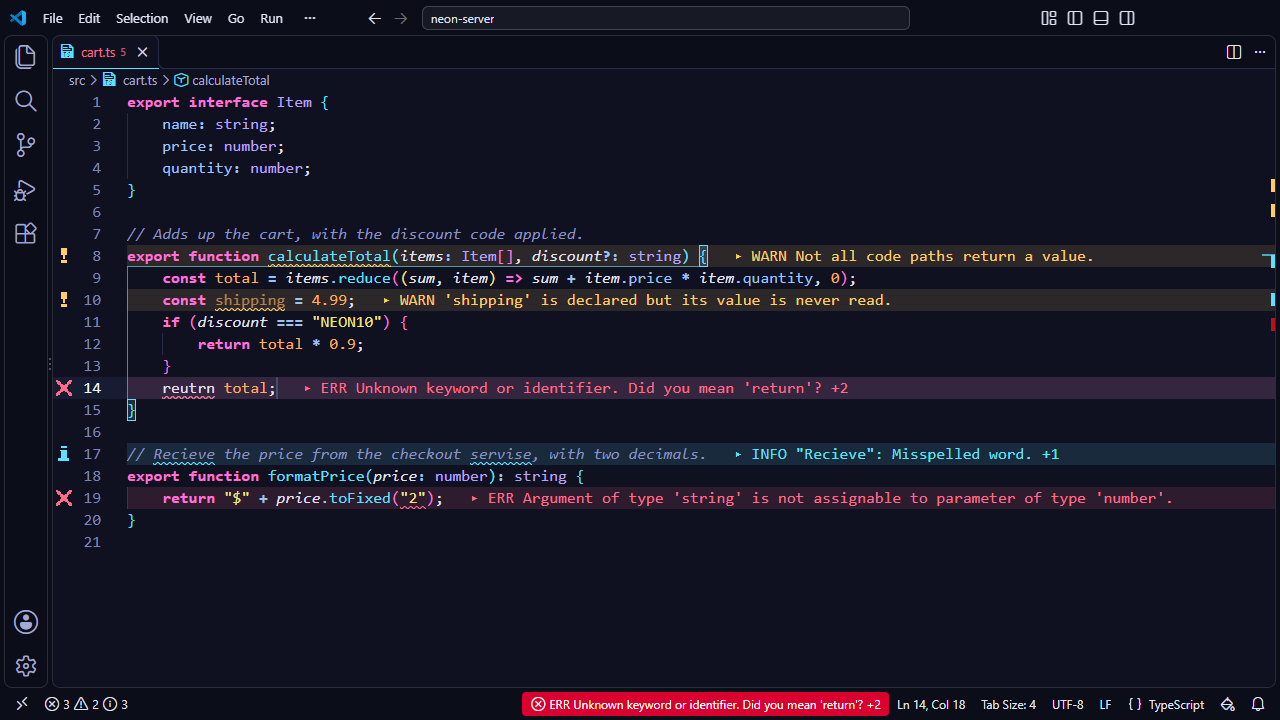
Stop hovering over squiggly lines or toggling the problems panel. Stylesmith renders errors, warnings and info inline, right next to your code, giving you immediate feedback.
Zero Friction
By rendering diagnostics inline, you see typos and logical errors immediately. You do not need to open the terminal or move your mouse to discover what broke.
Fully Integrated
Problem Lens uses the diagnostic colors of your active palette. Errors, warnings and info match the current theme instead of clashing with default editor colors.
Multiple diagnostics on one line
When a line has more than one problem, Problem Lens shows the most severe one at
the end of the line followed by a count of the others, such as
▸ ERR Cannot find name 'x'. +2. Hovering the Problem Lens
status bar item when the cursor is on that line lists every diagnostic on the
line in severity order.
Error signal
Turn on stylesmith.problems.errorSignal, and when the number of
errors in your files goes up, the status bar shows the new count for a moment,
on the error background. It shows once, at most every two seconds, so it never
flashes; click it to open the Problems panel. Off by default.
Failed-command & long-command signals
Turn on stylesmith.terminal.failSignal, and when a command in the
integrated terminal fails, the status bar shows its exit code for a moment, such
as exit 1, on the error background, with the same two-second limit
as the error signal. Turn on stylesmith.terminal.doneSignal, and
when a command finishes with exit code 0 after running for at least
10 seconds, the status bar briefly shows how long it took, such as
done 14s. A command you stop with Ctrl+C doesn’t count; click
either signal to open the terminal. Both rely on VS Code’s shell
integration, which is on by default for bash, zsh, fish and PowerShell; without
it, they stay silent. Off by default.