
Oh My Posh
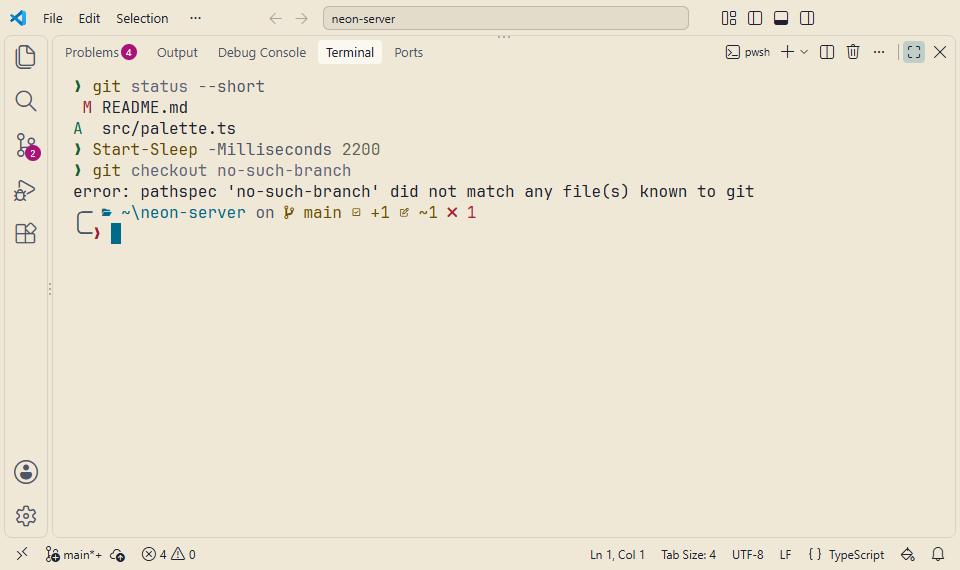
Sync your terminal prompt with your active VS Code theme. The official Stylesmith Oh My Posh configuration matches your current palette automatically.
How it works
Oh My Posh is a custom prompt engine for any shell. The included
stylesmith.omp.json configuration colors the prompt with
your terminal's 16 ANSI colors, and every Stylesmith theme defines them.
In VS Code's terminal, the prompt takes on the active preset's palette,
and follows when you switch.
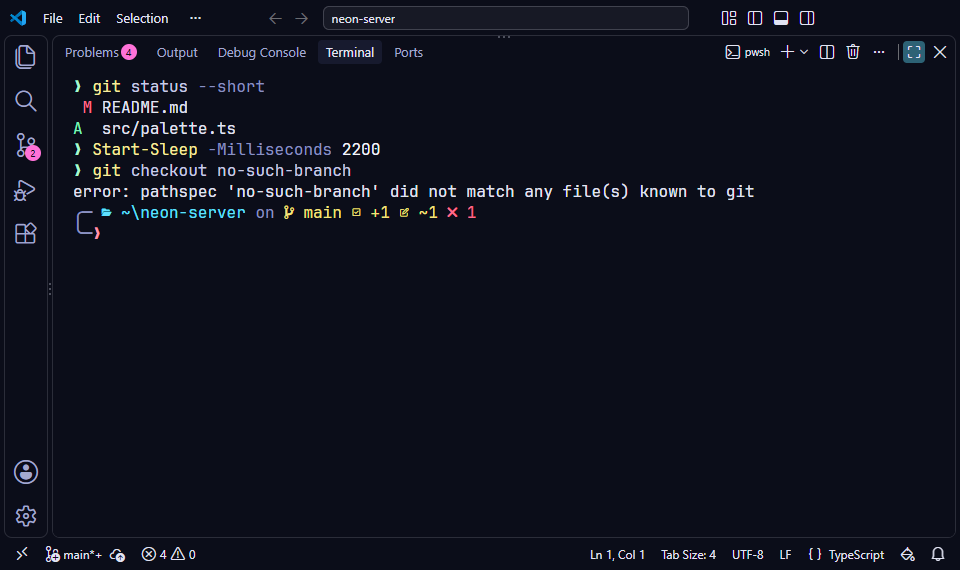
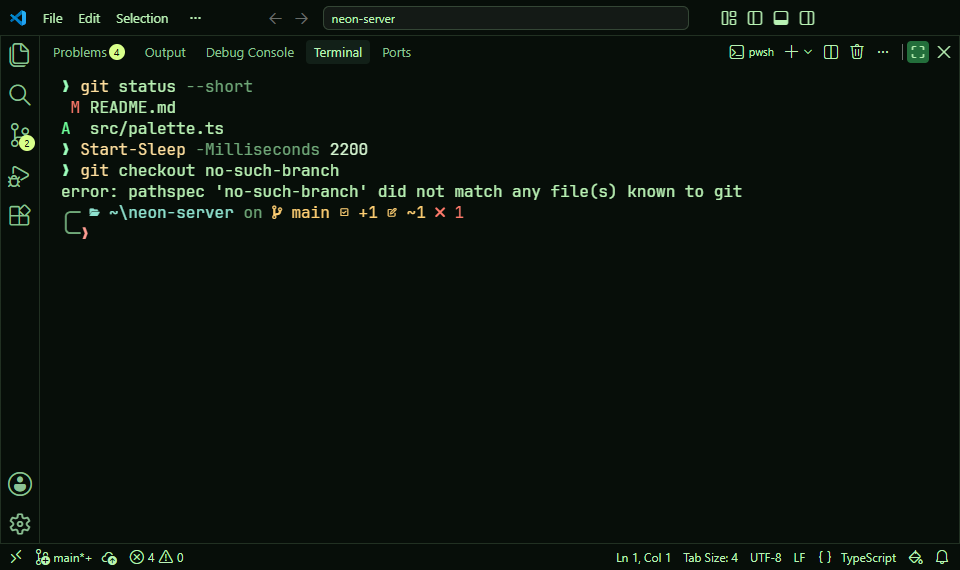
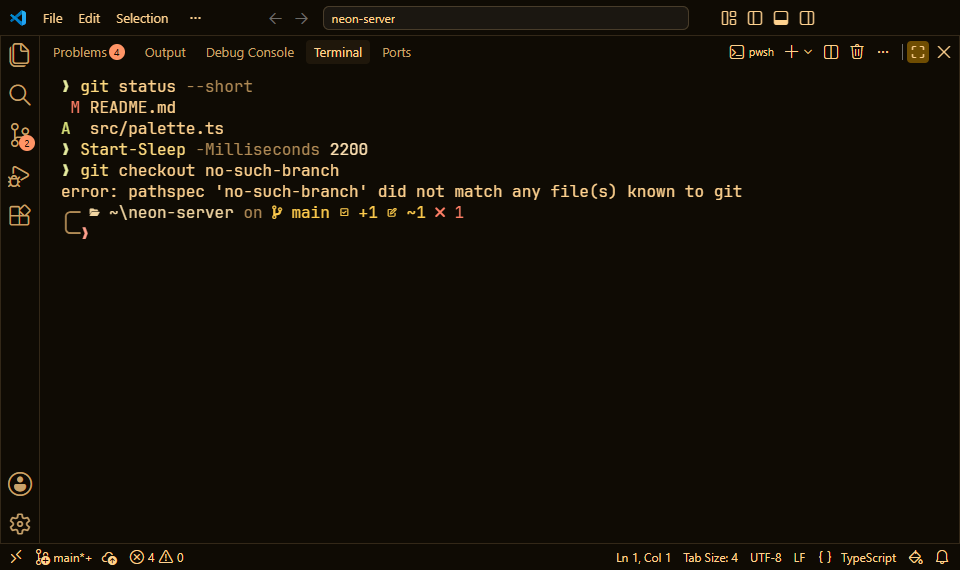
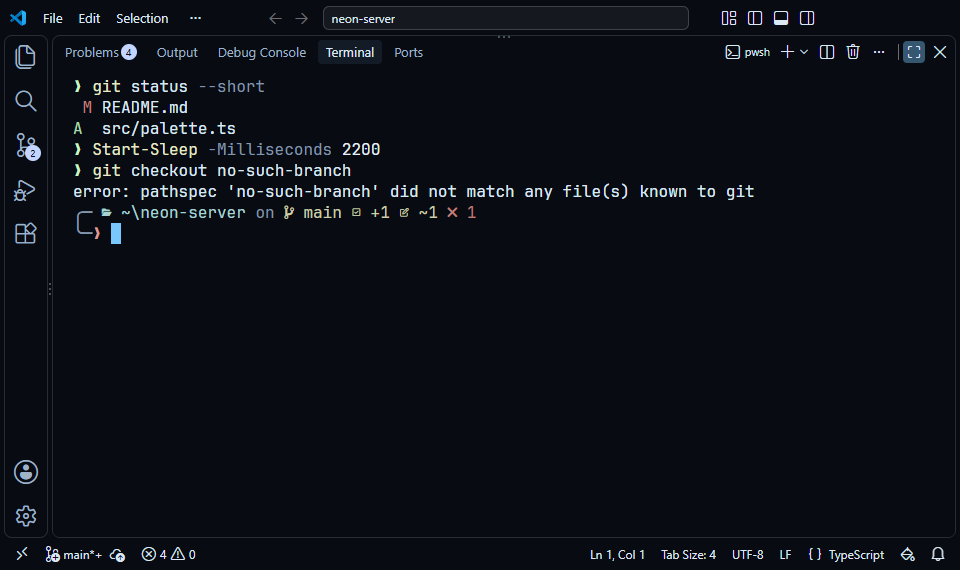
The prompt in every theme
The prompt uses your terminal’s color names, so each Stylesmith theme colors it: every theme has its own terminal palette, tinted to the theme, while red still means a failure and green a success. Here it is in each theme’s real colors: the folder, the git branch, a slow command, and a failed one.
╭─ ~/stylesmith on main
╰─❯ npm test
╭─ ~/stylesmith took 3s ✗ 1
╰─❯
╭─ ~/stylesmith on main
╰─❯ npm test
╭─ ~/stylesmith took 3s ✗ 1
╰─❯
╭─ ~/stylesmith on main
╰─❯ npm test
╭─ ~/stylesmith took 3s ✗ 1
╰─❯
╭─ ~/stylesmith on main
╰─❯ npm test
╭─ ~/stylesmith took 3s ✗ 1
╰─❯
╭─ ~/stylesmith on main
╰─❯ npm test
╭─ ~/stylesmith took 3s ✗ 1
╰─❯
╭─ ~/stylesmith on main
╰─❯ npm test
╭─ ~/stylesmith took 3s ✗ 1
╰─❯
╭─ ~/stylesmith on main
╰─❯ npm test
╭─ ~/stylesmith took 3s ✗ 1
╰─❯
╭─ ~/stylesmith on main
╰─❯ npm test
╭─ ~/stylesmith took 3s ✗ 1
╰─❯
╭─ ~/stylesmith on main
╰─❯ npm test
╭─ ~/stylesmith took 3s ✗ 1
╰─❯
╭─ ~/stylesmith on main
╰─❯ npm test
╭─ ~/stylesmith took 3s ✗ 1
╰─❯
╭─ ~/stylesmith on main
╰─❯ npm test
╭─ ~/stylesmith took 3s ✗ 1
╰─❯
╭─ ~/stylesmith on main
╰─❯ npm test
╭─ ~/stylesmith took 3s ✗ 1
╰─❯
╭─ ~/stylesmith on main
╰─❯ npm test
╭─ ~/stylesmith took 3s ✗ 1
╰─❯
╭─ ~/stylesmith on main
╰─❯ npm test
╭─ ~/stylesmith took 3s ✗ 1
╰─❯
╭─ ~/stylesmith on main
╰─❯ npm test
╭─ ~/stylesmith took 3s ✗ 1
╰─❯
╭─ ~/stylesmith on main
╰─❯ npm test
╭─ ~/stylesmith took 3s ✗ 1
╰─❯
╭─ ~/stylesmith on main
╰─❯ npm test
╭─ ~/stylesmith took 3s ✗ 1
╰─❯
╭─ ~/stylesmith on main
╰─❯ npm test
╭─ ~/stylesmith took 3s ✗ 1
╰─❯
╭─ ~/stylesmith on main
╰─❯ npm test
╭─ ~/stylesmith took 3s ✗ 1
╰─❯
╭─ ~/stylesmith on main
╰─❯ npm test
╭─ ~/stylesmith took 3s ✗ 1
╰─❯
╭─ ~/stylesmith on main
╰─❯ npm test
╭─ ~/stylesmith took 3s ✗ 1
╰─❯
╭─ ~/stylesmith on main
╰─❯ npm test
╭─ ~/stylesmith took 3s ✗ 1
╰─❯
╭─ ~/stylesmith on main
╰─❯ npm test
╭─ ~/stylesmith took 3s ✗ 1
╰─❯
╭─ ~/stylesmith on main
╰─❯ npm test
╭─ ~/stylesmith took 3s ✗ 1
╰─❯
Installation
-
1. Install Oh My Posh
Follow the official Oh My Posh documentation for your specific operating system to install the core engine.
-
2. Get the Stylesmith theme
Download the official configuration file to your home directory, or copy
stylesmith.omp.json(and 16-color terminal ANSI palettes for Windows Terminal, Alacritty, Kitty, and Ghostty) directly inside VS Code from Stylesmith: Show Menu → Terminal & editor add-ons….curl -O https://raw.githubusercontent.com/21010/stylesmith/main/extras/oh-my-posh/stylesmith.omp.json -
3. Configure your Shell
Set Oh My Posh to use the downloaded theme. For PowerShell, add this to your
$PROFILE:oh-my-posh init pwsh --config ~/stylesmith.omp.json | Invoke-ExpressionFor Bash (
~/.bashrc) or Zsh (~/.zshrc):eval "$(oh-my-posh init bash --config ~/stylesmith.omp.json)" # or for Zsh: eval "$(oh-my-posh init zsh --config ~/stylesmith.omp.json)"For Fish (
~/.config/fish/config.fish):oh-my-posh init fish --config ~/stylesmith.omp.json | source